Back to the blog

How to see which guests uploaded photos while the event is on

The guest activity feed shows who joined your event and how many photos each guest uploaded. When to check it and how to remind guests about their photos.

By Jan Szotkowski · May 17, 2026 · 3 min read
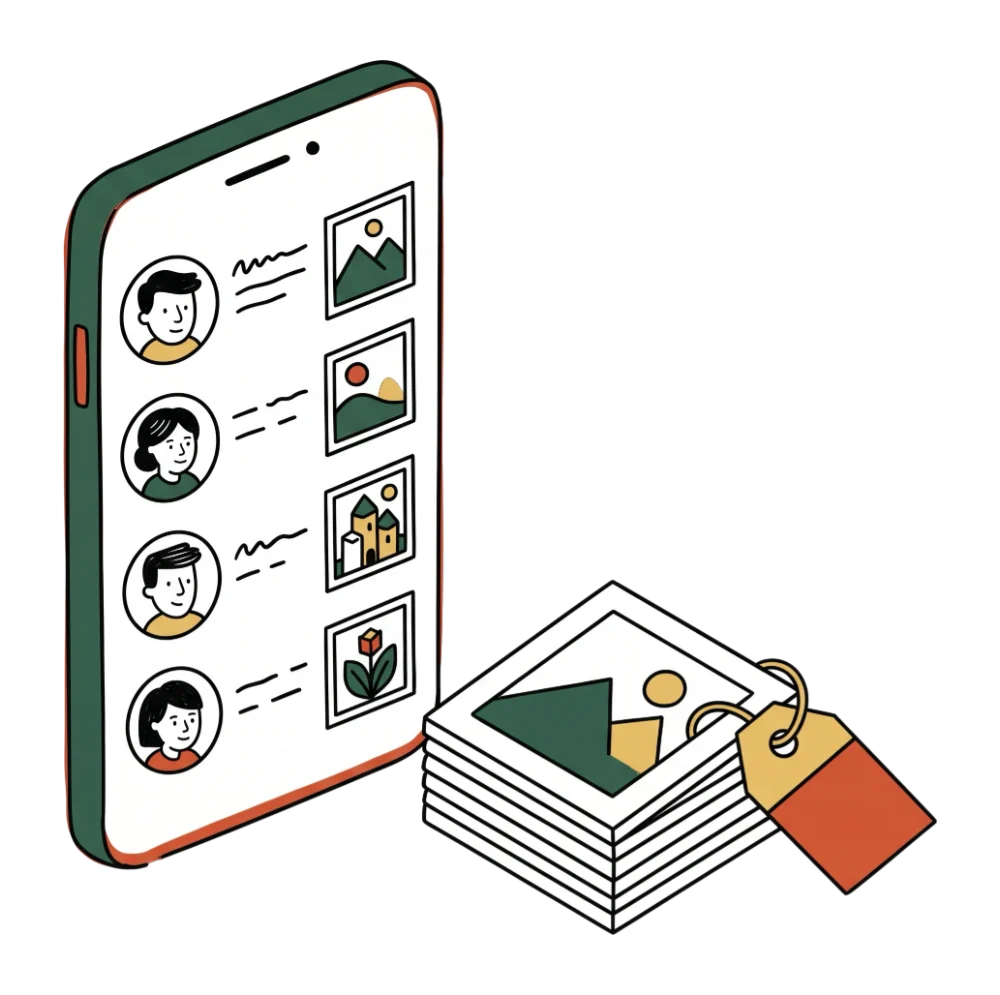
An hour in, the gallery has 30 photos, and you can't tell whether fifteen guests sent them or one cousin uploaded his whole phone. The guest activity feed shows you while the evening is still on, when there's still time to do something about it.

In short

  • On your event page, open the Manage tab and then Activity. Only you can see it, not your guests.
  • Check it three times: after guests arrive, after the speeches and before the evening ends. You don't have to watch it the whole time.
  • Lots of guests have joined, but there aren't many photos? Remind the whole room once, out loud, rather than going up to people one by one.

What you'll see in the feed

Each row tells you which guest did what and when: joined, uploaded photos or liked a photo in the gallery. For uploads you also see the number of photos, so you can tell right away whether someone sent one photo or forty.

Guests appear under the name they typed in themselves the first time they opened the event page. That's why, alongside full names, you'll sometimes see something like "Mike from the groom's side." You won't see their email, location or phone contacts, because guests don't enter any of that.

When to check the feed

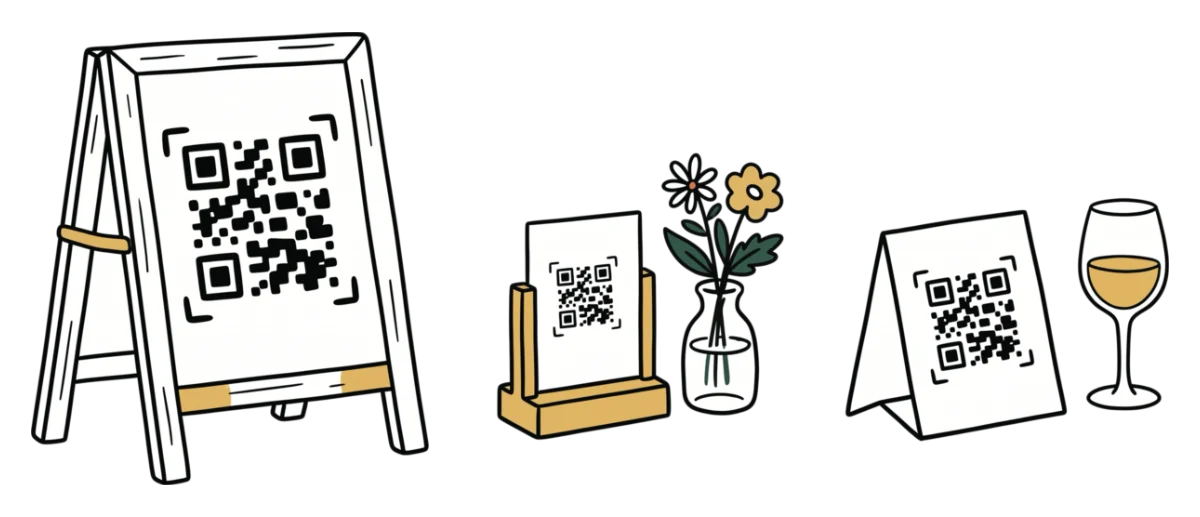
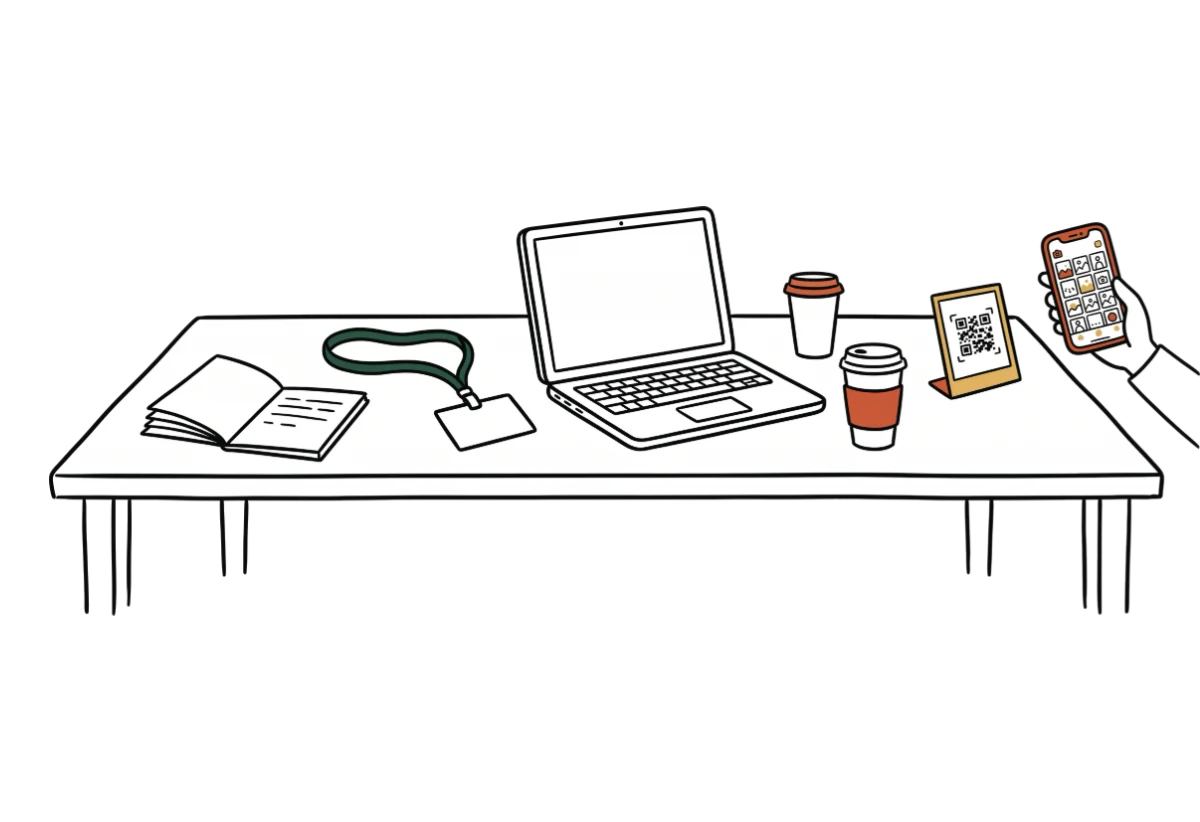
  1. A little while after guests arrive. If the room is full and the feed is empty, guests can't see the QR code, or nobody has told them about it yet. Ask the MC to mention the gallery before dinner, because during the meal guests are seated and have time for their phones. For where to put the code, see the article on QR code placement.
  2. After the speeches or the first dance. Almost everyone takes photos of these, so new uploads should keep coming in from different names. If they pick up right after the MC mentions the gallery, the announcement worked and you don't need to do anything else.
  3. Before the evening ends. Lots of guests have joined, but there aren't many photos? That happens: guests opened the page as soon as they arrived and left the photos for later.

Remind everyone out loud, all at once

The feed tells you who has already sent photos, but don't go to anyone's table about it. Guests came to celebrate, and asking them why they haven't sent anything yet sounds like you're checking up on them. One reminder for the whole room embarrasses nobody, and anyone who forgot will remember on their own.

Guests who don't get to it in the evening can still send photos the next day. On the free plan guests have 2 days to upload (the event day and the whole next day), and on Premium they have 7. So you can still send the gallery link to the family group chat the next morning.

Tip: Put a short reminder in the MC's schedule at the cake cutting, when guests gather around and take photos anyway: "Thanks to everyone who's already sent photos. If you haven't had a chance yet, scan the QR code on your table and send a few favorites."

The guest activity feed comes with the free plan too, and you can set up a gallery with a QR code in about a minute. Create your event.

Create a free gallerydone in 1 minute

Common questions

No, only the organizer signed in to their account can see it. Guests see the shared gallery.

Yes, Free and Premium have the same feed. The pricing page shows how the plans differ.

Only the name the guest typed in themselves, what they did at the event and when. The feed doesn't show their email, location or phone contacts.

The photos from your next event don't have to stay stuck on guests' phones.

Setup takes a minute. Guests get a QR or link, no app, no chase afterwards.

Create your gallery free

Guests need no app · Set up in 1 minute