Back to the blog

Where to put the QR code so guests actually upload their photos

Guests upload during lulls at their table and at the bar. Where to put the QR code, what to write next to it and how to tell mid-evening that it's working.

By Jan Szotkowski · May 19, 2026 · 3 min read
It's 9:30 p.m. Guests have been taking pictures since the ceremony, but the gallery still has only a handful of photos. Usually the QR code just wasn't in front of them when they had their phones out, so where you put it matters most.

In short

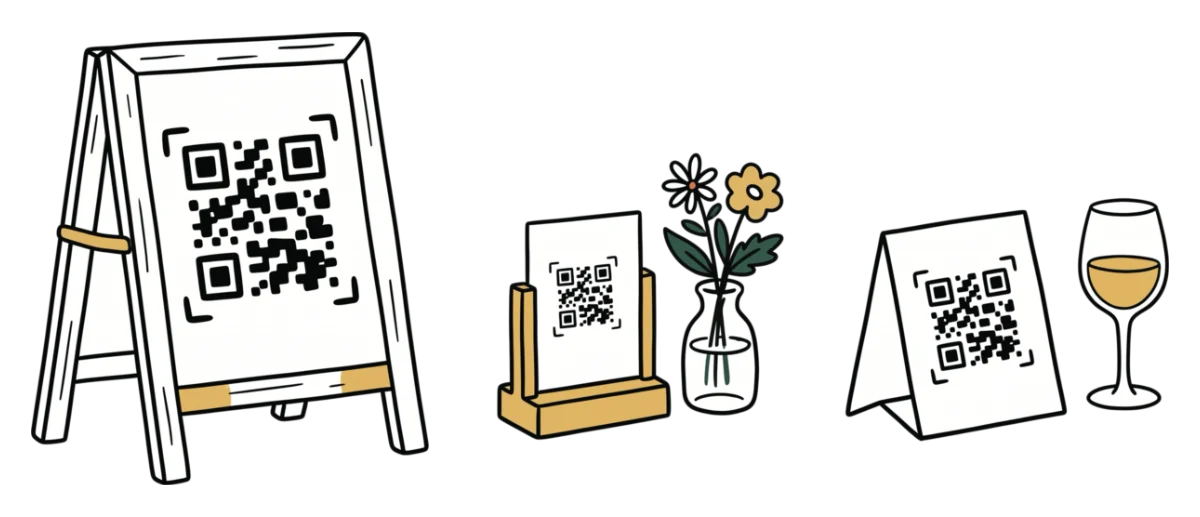
  • Put the QR code on every table and at the bar, where guests have a quiet minute and their phone in hand.
  • Add one sentence next to it that tells guests where their photos go once they scan it.
  • Halfway through the evening, check guest activity, and if nobody is uploading, put out more cards.

Put the code on the tables and at the bar

A card on every table is the safest bet. Guests send their photos once things quiet down, say between courses, when everyone at the table is showing each other what they've taken. The card sits in front of them all evening, and if someone isn't sure what to do with the code, the person next to them will show them.

The second-best spot is the bar, because guests spend a few minutes in line for a drink with their phone in hand.

Tip: Before you send the cards to the printer, print one, set it on a table and scan it sitting down in dim light. If your phone doesn't read it on the first try, make the code bigger, because by candlelight it will only get harder.

Where not to put the code

  • Small, as a decoration. A code pressed into a wax seal looks lovely in the mockup, but nobody will find it in the room.
  • On a single sign at the entrance. Guests walk past it with a gift and flowers in their hands and never come back to it.

Write one sentence next to the code

All the card needs is one sentence that tells guests where their photos will go, like "Your photos from tonight belong here." "Scan for more information" doesn't work, because nobody at a party is looking for information. Guests want to send the photo they just took.

You don't need to write instructions, because after scanning, guests just type a name and pick their photos. They don't need an app or an account.

With Premium you design the cards with your sentence in the invitation designer and download them as a PDF for printing. On the free plan you download the QR code as an image and add the sentence yourself.

Halfway through the evening, check who's uploading

Open the Manage tab on your event and go to guest activity. You'll see who joined, what they uploaded and when, and it takes a minute between courses. If almost nobody has joined by the middle of the evening, guests aren't seeing the code, so try one or both of these:

  • Put cards where people are gathered right now, like by the dance floor or the desserts. Just print a few more than you have tables beforehand.
  • Ask the MC to point to the cards once: "If you've taken any photos today, scan the code on your table." Guests tend to put off a plain announcement, but they'll try a code that's right in front of them on the spot.

You can set up an event in about a minute, and your first one is free. Create it before you print the cards, so you can test the QR code with your own phone.

Create a free gallerydone in 1 minute

Common questions

Big enough that a guest can scan it from their chair without holding the card up to a candle. Print it dark on light paper, and if you're expecting older guests or dim lighting, go a size bigger.

Yes, just not as the only place. Guests read the invitation weeks ahead and don't bring it to the party, so put the code on the tables and at the bar too.

Yes, one event in Udalist has one QR code and one gallery. On the free plan guests can upload for 2 days (the event day and the whole next day), and on Premium for 7, so for a celebration from Friday to Sunday you need Premium.

The photos from your next event don't have to stay stuck on guests' phones.

Setup takes a minute. Guests get a QR or link, no app, no chase afterwards.

Create your gallery free

Guests need no app · Set up in 1 minute