Back to the blog

Graduation ball photos from every classmate in one gallery

How to collect graduation ball photos from classmates, parents and teachers with a QR code, where to put the code and why the free plan isn't enough.

By Jan Szotkowski · October 22, 2026 · 3 min read

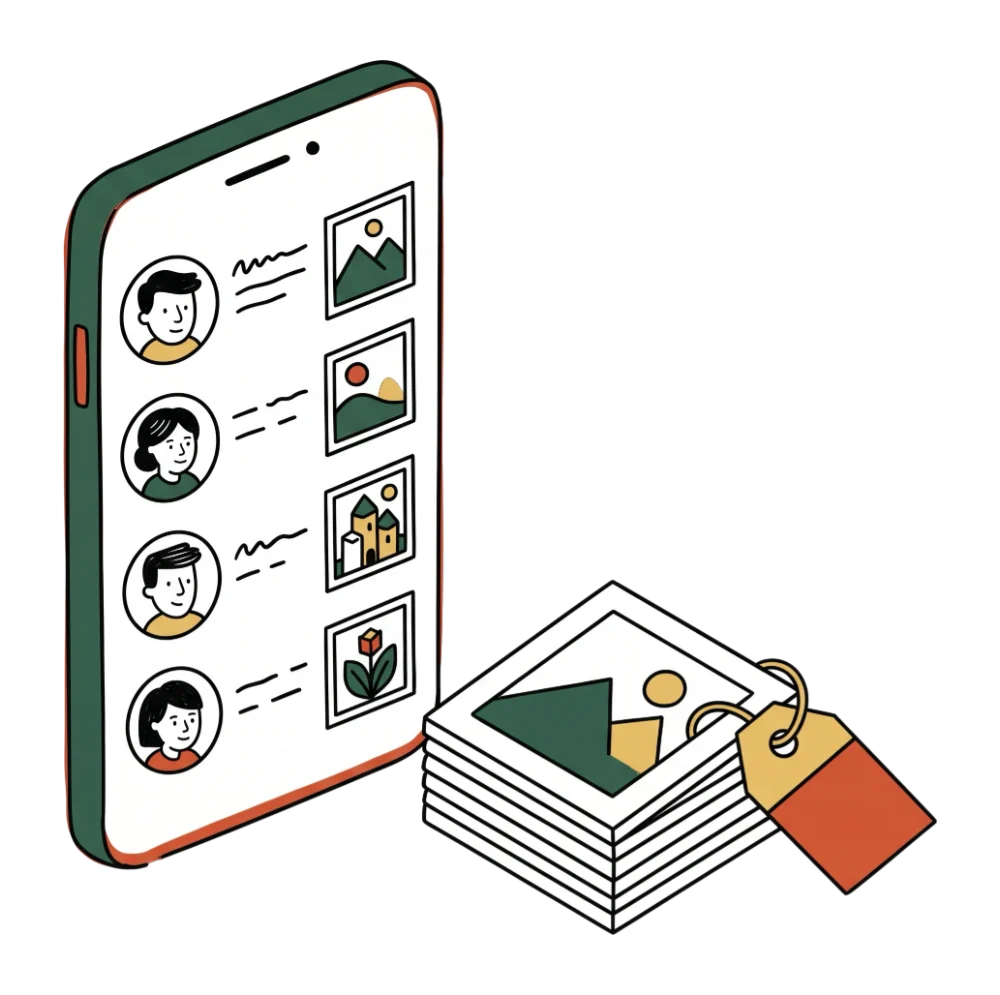
At a graduation ball, everyone takes photos: classmates on the dance floor, parents from the balcony and grandmas at their tables. The next day those photos sit on fifty phones, and only a few make it into the class group chat. Here's how to collect them in one gallery that same night.

In short

  • Put the QR code on the tables and in the ball program. Guests scan it with their phone and upload photos in the browser, so they don't install anything.
  • Ask the host to mention the code out loud right before the sash ceremony, because that's when absolutely everyone takes photos.
  • Choose Premium for the ball. On the free plan, all the guests together can upload only 50 photos, and a ball produces hundreds.

One person from the class is enough, say whoever is in charge of the decorations or the tickets. They create the gallery in about a minute and download the QR code for printing. You pay once per ball, so the whole class can chip in for Premium.

Where to put the QR code

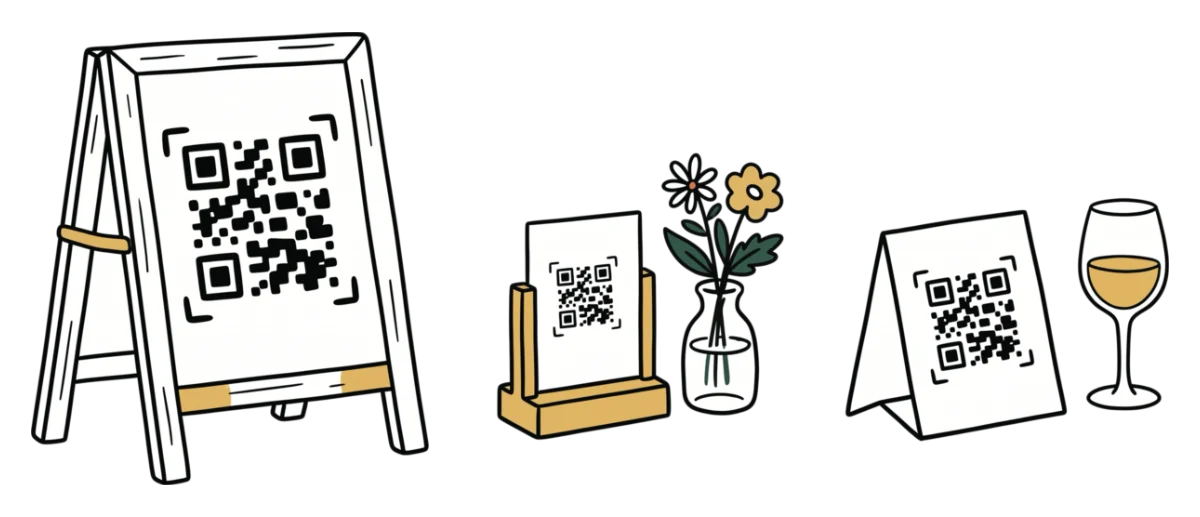
Cards with the code belong on the tables, because that's where parents and grandparents sit all evening. Add the code to the ball program or the tickets too, so guests have it with them before they even arrive. For where not to put the code, see the QR code placement guide.

Write one sentence next to the code, like "Upload your photos from the ball here, no app needed." Then guests know what happens when they scan it.

Mention the code before the sash ceremony

The whole room takes photos of the sash ceremony, when each graduate receives a sash from their class teacher, and of the class's midnight surprise. Right before it, ask the host to say once: "Upload your photos from tonight through the QR code on your table." Guests who scan it at that moment keep uploading photos until the ball ends.

Tip: The next day, send the upload link to the class group chat and to the parents too. With Premium, guests can upload for 7 days, so even those who only go through their photos at the weekend have time.

Is the free plan enough for a ball?

No. On the free plan, all the guests together can upload 50 photos with the Udalist watermark, and the sash ceremony alone produces that many. Premium has unlimited photos with no watermark, plus videos, like the classes' grand entrance. You'll find the price on the pricing page.

After the ball, you download all the photos in one ZIP and can send them to classmates and parents. With Premium the gallery stays open for 90 days, so download the photos before then.

Create your gallery before you send the tickets and the program to print, and add the QR code to them straight away. It takes about a minute.

Create a free gallerydone in 1 minute

Common questions

No. They scan the QR code with their phone camera, type a name and upload photos right in the browser.

On the free plan, 50 between them. With Premium, unlimited photos and videos.

Yes. With Premium you lock the event with a PIN, so only the people you give it to can upload photos. Write it on a card next to the QR code, because the code doesn't include it.

The photos from your next event don't have to stay stuck on guests' phones.

Setup takes a minute. Guests get a QR or link, no app, no chase afterwards.

Create your gallery free

Guests need no app · Set up in 1 minute